User Guide
IO Gesture Software Basics
System Requirements
| Item | Requirement |
|---|---|
| OS | Ubuntu 22.04 or 24.04 (x86 or arm64) |
| CPU | Recommended: ≥ 14th-gen Intel Core i5, or ≥ 13th-gen Intel Core i7 equivalent (see Device Performance Requirements) |
| Memory | 16 GB or more recommended |
| Command-line tool | curl (used by the startup script for local health checks) |
| Browser | Head mode requires a modern browser (Chrome / Firefox / Edge, etc.) |
Note: The software package bundles the Python runtime, dependency libraries, and executables it needs; using the main program requires no installation of ROS or system-level Python dependencies.
Device Performance Requirements (CPU)
This platform runs multiple subprocesses simultaneously; in Head mode it also drives web-based 3D visualization and real-time charts, which places high demands on CPU performance. Below the recommended configuration, you may experience UI lag, dropped frames in joint charts, or slow subprocess response.
The following guidelines may help:
| Tier | CPU reference | Notes |
|---|---|---|
| Recommended | 14th-gen Intel Core i5 or 13th-gen Intel Core i7 and above | Smoothly runs Head mode (including URDF visualization and real-time monitoring) |
| Acceptable | 13th-gen i5, 12th-gen i7, or equivalent | Headless mode is usually acceptable; Head mode visualization may occasionally stutter |
| Not recommended | Older laptops / low-power U-series below the above tier | Noticeable lag likely; not recommended for demos or production |
Package Structure
- The software package directory structure and description are as follows (subject to what you actually receive):
io_exotrans2hand_project_zenoh_22.04_x86_vX.X.X/
│
├── bundle/                  # Runtime dependencies (ready to use out of the box)
│
├── configs/                 # Configuration and model resources
│   ├── config/              # System config (Gateway / Zenoh / topics)
│   ├── end_tools/           # End-effector tool configuration
│   ├── exoskeleton_urdf/    # Exoskeleton URDF models and meshes
│   ├── IO.png               # App icon
│   └── udev/                # Serial device rules
│
├── io-gateway.desktop       # Desktop shortcut template
│
├── scripts/                 # Startup scripts
│   ├── bundle-env.sh        # Load environment variables
│   ├── install-desktop.sh   # Install desktop shortcut
│   └── run_gateway.sh       # Launch Gateway console
│
├── src/
│   ├── io_bus_proto/        # Communication message protocol
│   ├── io_gateway/          # Web console (backend + 3D visualization)
│   └── io_unicontroller/    # Exoskeleton motion control
│
└── tools/                   # Auxiliary tools
    ├── tools/               # Wireless module flashing, etc.
    ├── ws2ros_bridge.py     # WebSocket ↔ ROS bridge
    ├── ws2ros-env.sh
    ├── zenoh2ros_bridge.py  # Zenoh ↔ ROS bridge
    └── zenoh2ros-env.sh
Appendix: Common configuration (click to expand)
Main config file: configs/config/gateway.yaml
| Item | Description |
|---|---|
udp_probe.bind_ip | Host bind IP for wireless mode (must be the host's actual address) |
listen_host / listen_port | Web listen address and port (default 0.0.0.0:8080) |
logs_dir | Log directory |
wifi_provision | Default SSID / password / callback IP for provisioning |
udp_allowed_ips | Wireless IP allowlist (up to 2, optional) |
Dexterous hand resource directory: configs/end_tools/<model_name>/.
Run Modes
IO Gesture provides two run modes:
| Mode | Use case | Web UI | How to launch |
|---|---|---|---|
| Head (default) | Local desktop, debugging, demos | Yes, auto-opens the browser (see UI Overview for details) | Method 1: From the software package directory, run ./scripts/install-desktop.sh in a terminal, then double-click the desktop shortcut or search for "IO Gateway" / "IO Gesture" in the app menu to launch;Method 2: From the software package directory, run ./scripts/run_gateway.sh in a terminal |
| Headless | SSH remote, systemd service, secondary integration | None | From the software package directory, run ./scripts/run_gateway.sh --headless in a terminal |
- The software package's
tools/also provides optional ROS bridge scripts (the main program does not depend on ROS): Zenoh → ROS / WebSocket → ROS
For detailed startup instructions, see the IO Gesture Usage section.
IO Gesture Deployment
- Extract the software package and set permissions:
cd /path/to/io_exotrans2hand_project_zenoh_22.04_x86_vX.X.X
chmod +x scripts/*.sh
- Run from the project root:
./scripts/install-desktop.sh
This script will:
- Install the desktop shortcut "IO Gateway" / "IO Gesture".
- Install the serial udev rules (
ttyACM*/ttyUSB*→dialoutgroup). - Add the current user to the
dialoutgroup.
If you were just added to the dialout group, please log out and back in (or reboot) before plugging/unplugging the exoskeleton.
If serial permission issues persist after the script finishes, try running manually:
sudo chmod -R 777 /dev/ttyA*
IO Gesture Usage
Start Head Mode
cd /path/to/io_exotrans2hand_project_zenoh_22.04_x86_vX.X.X
./scripts/run_gateway.sh
- Opens the web console by default:
http://127.0.0.1:8080/. - The port is read from
listen_portingateway.yaml, and can also be overridden with theGATEWAY_PORTenvironment variable. - To prevent the browser from opening automatically:
./scripts/run_gateway.sh --no-browser.
You can also launch by searching for IO Gateway / IO Gesture in the desktop launcher.
UI Overview
Once started, the web console opened in the browser is organized top to bottom as follows:
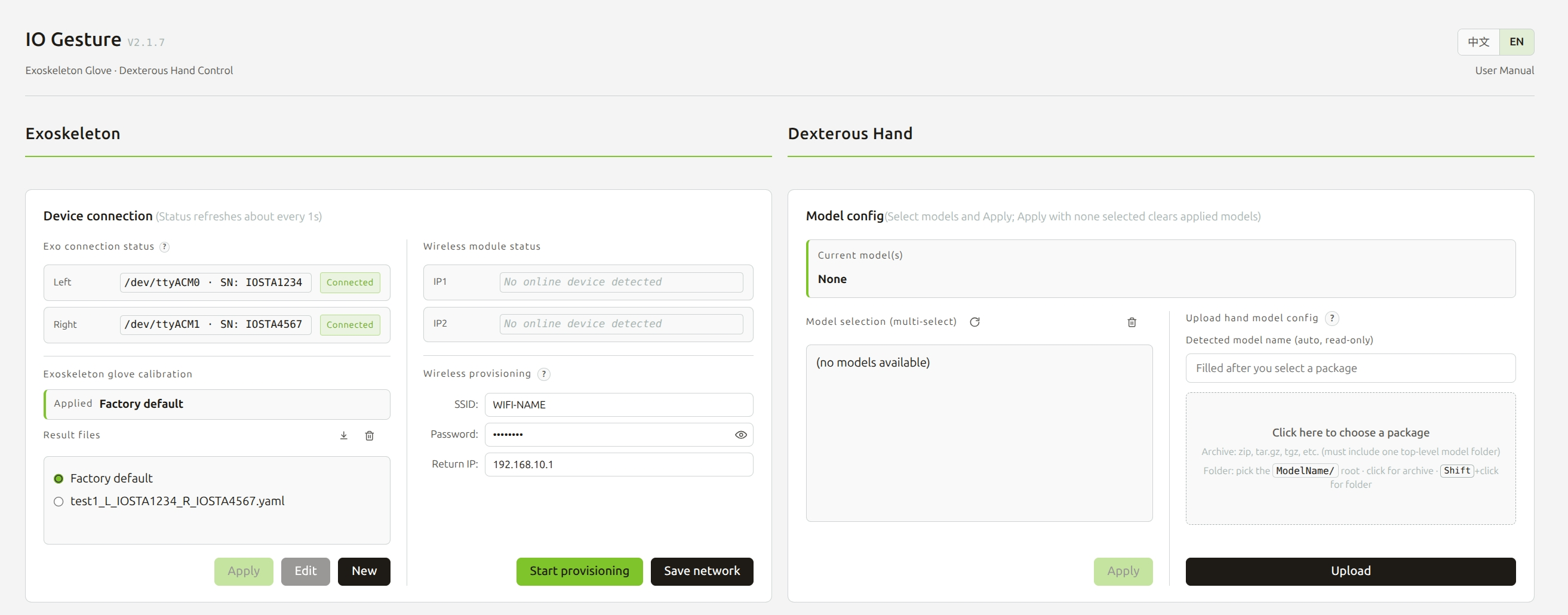
Exoskeleton and dexterous hand configuration module
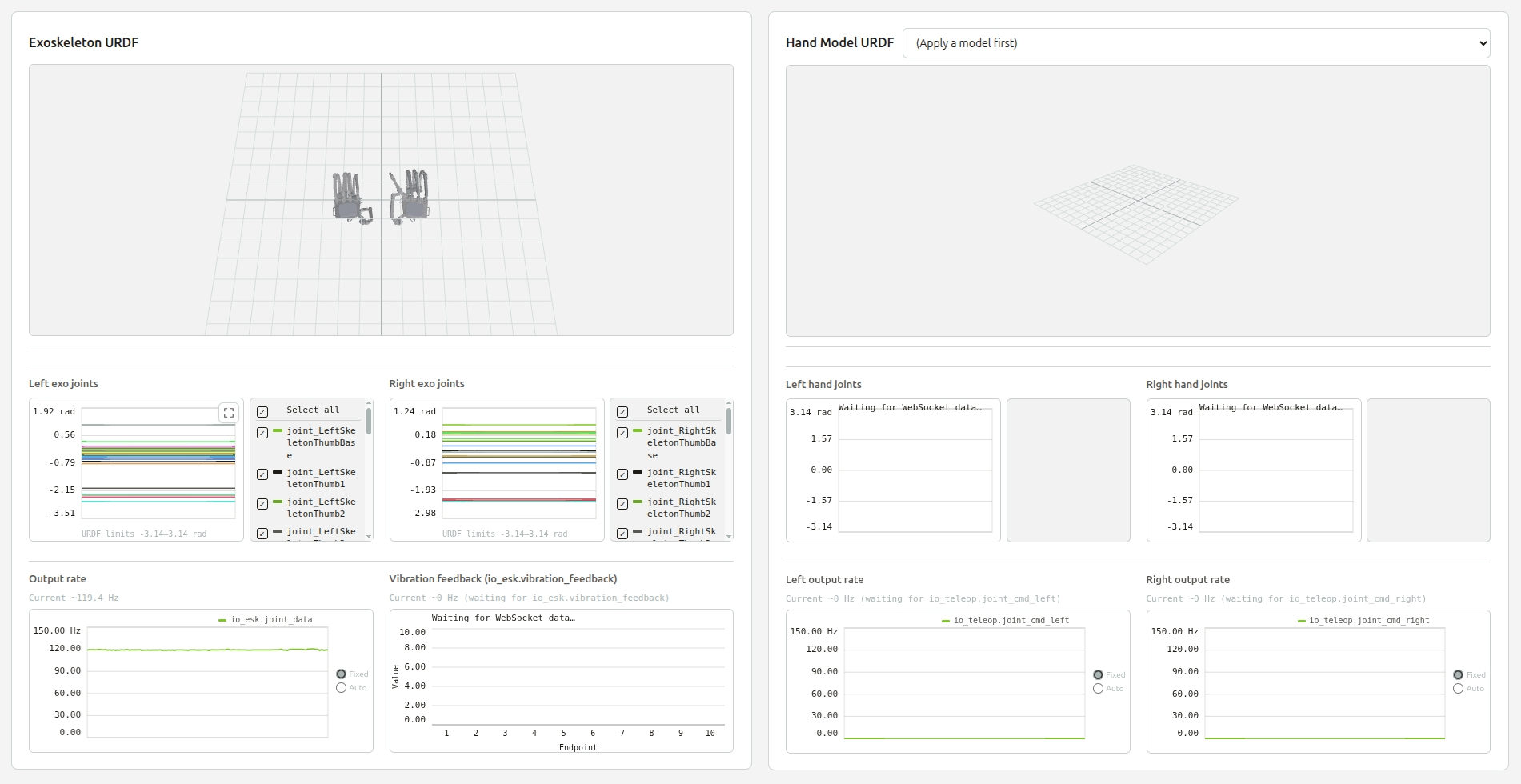
Exoskeleton and dexterous hand visualization module
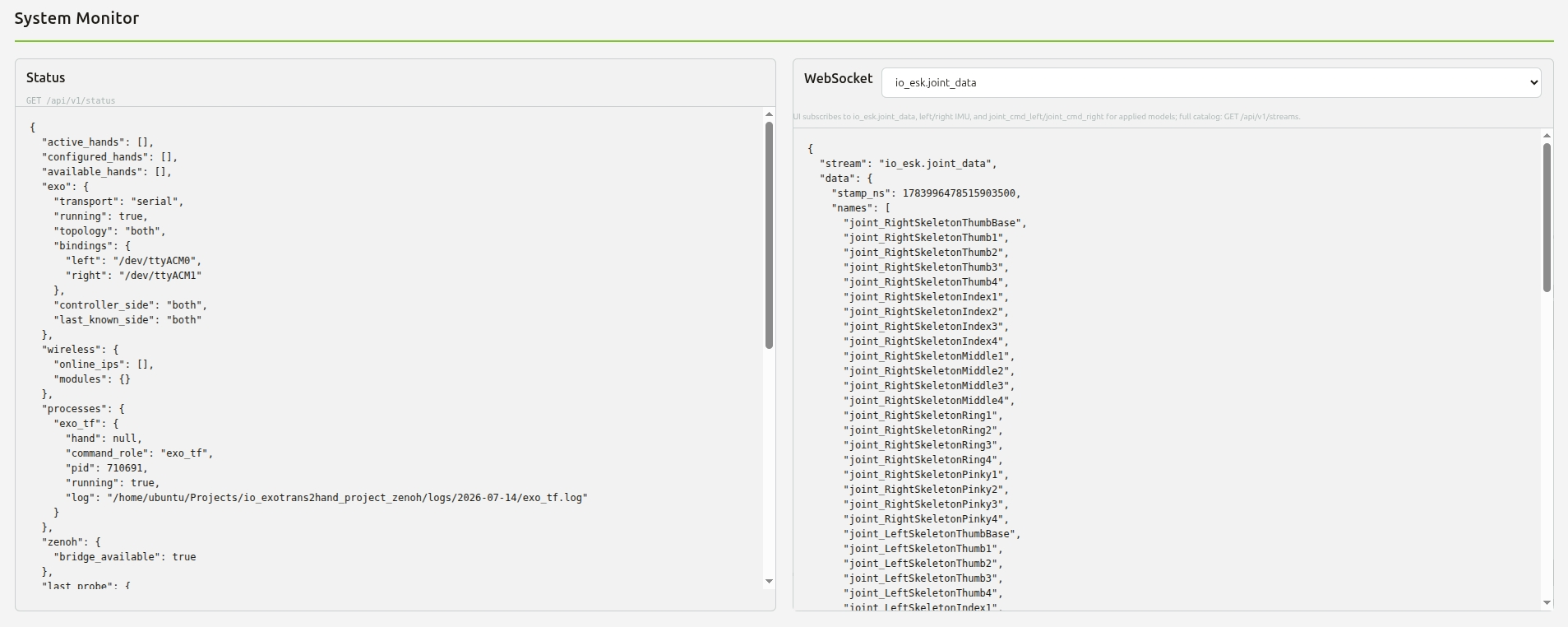
System monitor module
- The top-right corner lets you switch 中文 / EN (the preference is saved locally in the browser).
- For details on each module, see Exoskeleton Connection and Configuration, Dexterous Hand Connection and Configuration, Exoskeleton and Dexterous Hand Visualization, and System Monitor.
Start Headless Mode
./scripts/run_gateway.sh --headless
This provides the REST API, WebSocket, and process orchestration, without mounting the web pages.
Headless and Head share the same backend; the only difference is that Headless does not serve the HTML console or static assets.
Using the ROS Bridge Tool
The software package's tools/ provides optional bridge scripts (the main program does not depend on ROS):
Zenoh → ROS
source /opt/ros/<distro>/setup.bash
source tools/zenoh2ros-env.sh
python3 tools/zenoh2ros_bridge.py
WebSocket → ROS
source /opt/ros/<distro>/setup.bash
source tools/ws2ros-env.sh
python3 tools/ws2ros_bridge.py
Stop
Press Ctrl+C in the background terminal while running to stop the gateway and subprocesses.
Logs
Logs are saved by date under logs/YYYY-MM-DD/, for example:
| File | Content |
|---|---|
io_gateway.log | Gateway main process |
exo_tf.log / exo_tf_udp.log | Exoskeleton capture |
transform_<model>.log | Coordinate transform |
controller_left/right_<model>.log | Left/right hand controllers |
Exoskeleton Connection and Configuration
Wired Connection
- Connect the left/right exoskeleton glove via USB.
- In the "Device Connection" panel, check the left hand / right hand status: if it shows the serial port path and the status is "Connected", the connection is successful.
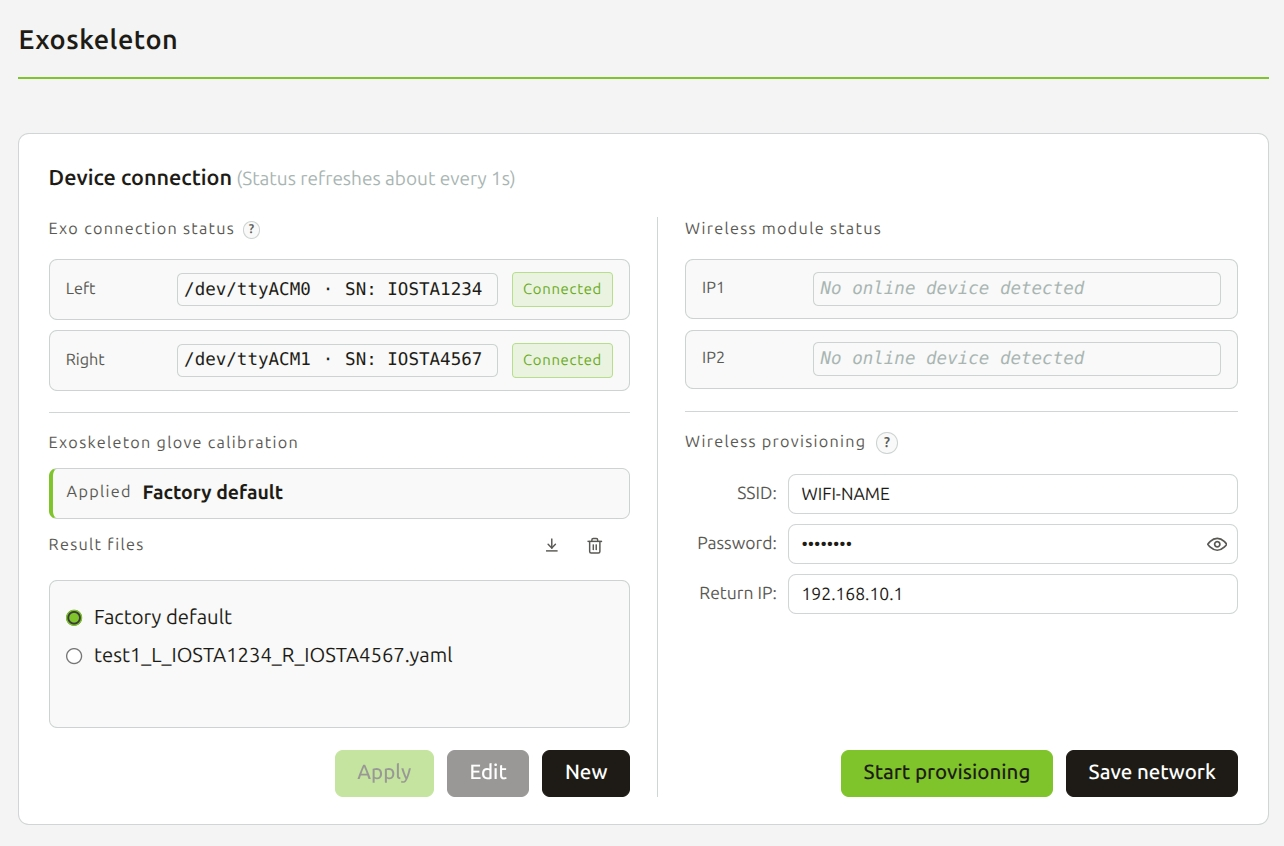
- The system auto-scans ports at an interval of about 2–3 seconds; no manual click to connect is needed.
- When connecting/disconnecting/switching ports, a notification pops up in the top-right corner.
Wired and wireless are mutually exclusive: after plugging in a wired exoskeleton, the system prioritizes serial mode.
Wireless Connection
Method 1: Quick Start with the Included Router
- Power on the included router.
- Connect the PC to the router via Ethernet cable (recommended), or connect to the router's Wi-Fi.
- Set the PC's
IPv4address to192.168.10.123(default). - Connect the exoskeleton glove to the wireless module.
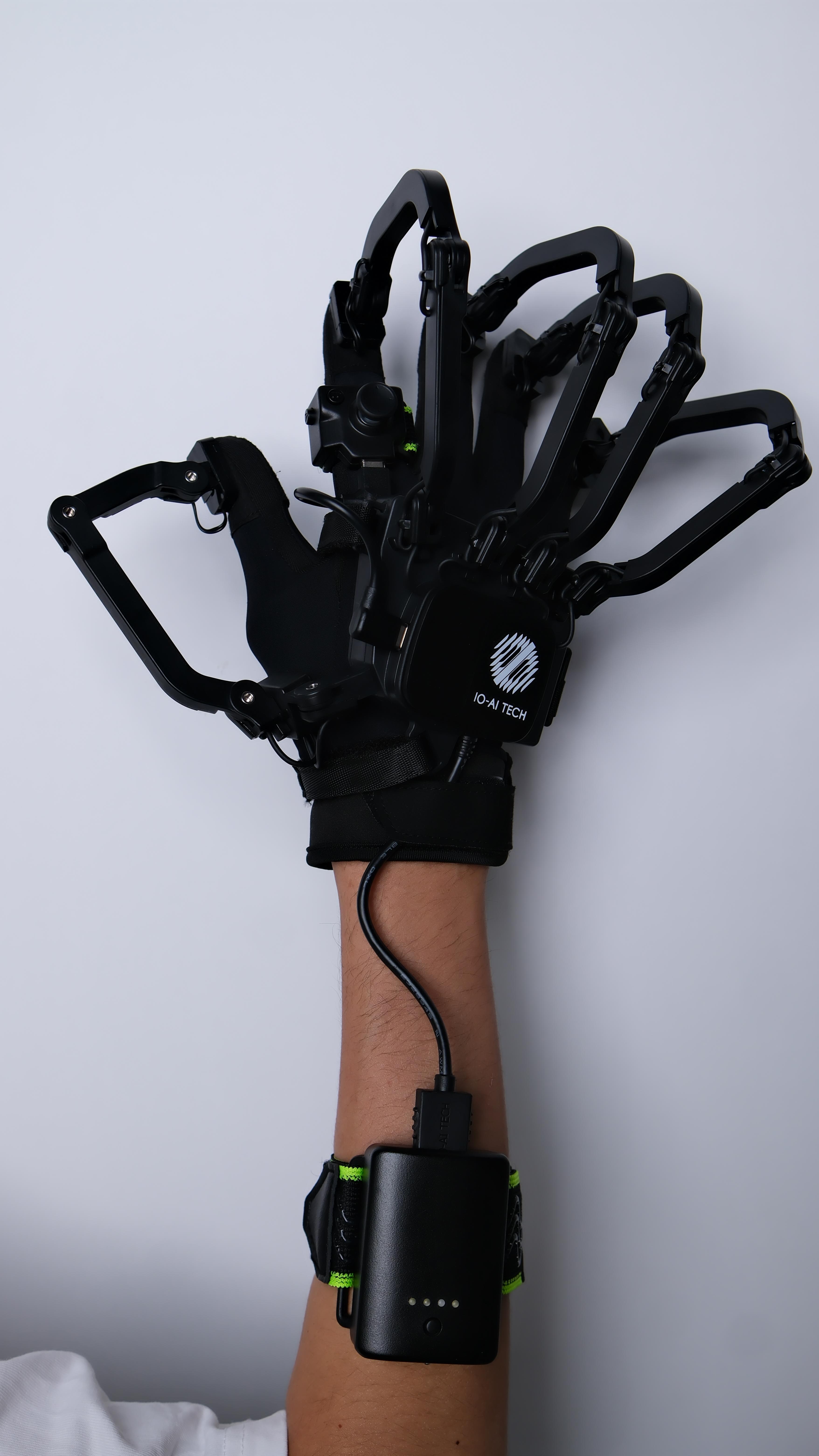
- Power on the wireless module: "short press + long press" the device button, release as soon as the battery LED blinks to power on; wait until the wireless module LED blinks green.
- On success, the device status shows Connected along with port information.
If you encounter connection issues, please check:
- The PC is connected to the target Wi-Fi.
- You can
pingthe router/gateway address (e.g.192.168.10.1). - Set
udp_probe.bind_ipingateway.yamlto the host's IP on that subnet (e.g.192.168.10.123). - If you need to switch the PC running the program, ensure the IP before and after the switch is consistent with the IP used when provisioning the wireless module.
Method 2: Using Another Router or Custom Network Configuration
- Power on the wireless module:
- "Short press + long press" the device button; release as soon as the battery LED blinks to power on.
- Switch the wireless module to pairing mode:
- Step 1: While powered on: short press → long press 3 s (battery LED blinks once) → keep holding to 10 s (blue LED on) → release → device powers off;
- Step 2: Power on again: short press → long press 3 s (battery LED blinks once) → release → pairing mode (blue LED on).
- ESP provisioning:
- Power on the router and connect it to the computer on which you want to run the IO Gesture program (to ensure successful provisioning, make sure the computer is only connected to this router during provisioning):
- Connect the computer to the router via Ethernet, or connect to the router's 2.4 GHz Wi-Fi band (e.g.
IO_2.4G_*****). - In "Wireless Module Provisioning", fill in:
- SSID: Wi-Fi name.
- Password: Wi-Fi password, at least 8 characters (use the eye icon to show/hide).
- Callback IP: router/gateway address, do not fill in the host's own IP.
- Connect the computer to the router via Ethernet, or connect to the router's 2.4 GHz Wi-Fi band (e.g.
- Make sure that besides the above computer, at least one other device is connected to the router.
- Click Start Provisioning and wait for "Provisioning broadcast successful" (optional: click Save Network to write the above three items to the config, which auto-fills next time the page opens).
- Watch the module LED: it should go from solid blue to briefly red, then solid green (or green blinking if an exoskeleton glove is connected at this time).
- After successful provisioning, "Wireless Module Status" shows the online module IPs (up to 2).
- The backend auto-discovers the module and, after confirming the exoskeleton device, starts UDP reception; once the device status becomes "Connected", you can select a hand model and start teleoperation.
- Power on the router and connect it to the computer on which you want to run the IO Gesture program (to ensure successful provisioning, make sure the computer is only connected to this router during provisioning):
Appendix: Wireless Module Button Reference
| Function | Action |
|---|---|
| Power on | Short press → long press 3 s (battery LED blinks once) → release |
| Power off | Short press → long press 3 s (battery LED blinks once) → release |
| Check battery (powered off) | Short press |
| Enter pairing mode | 1. Powered on: short press → long press 3 s (battery LED blinks once) → keep holding to 10 s (blue LED on) → release → powers off 2. Power on again: short press → long press 3 s (battery LED blinks once) → release → pairing mode (blue LED on) |
Appendix: Wireless Module LED Reference
| State | LED |
|---|---|
| No Wi-Fi connection | Red solid |
| Listen / pairing mode | Blue solid |
| Wi-Fi connected, no device data | Green solid |
| Wi-Fi connected, device data active | Green blinking |
| Reading intrinsics | Blue blinking |
| Device discovered | Blue-green blinking |
Appendix: Wireless Module Firmware Upgrade (click to expand)
The software package's tools/tools/ directory provides a USB firmware flashing tool for the wireless module (ESP32-S3), no pip dependencies required, using the bundled esptool binary.
-
Environment requirements
- Ubuntu 22.04 / 24.04, Python 3.10+.
- The user is already in the
dialoutgroup. - The wireless module is connected to the PC via USB, showing a
/dev/ttyUSB*or/dev/ttyACM*node. - It is recommended to close IO Gateway before upgrading to avoid the serial port being occupied.
-
Flash modes
Mode Command Description full(default)python3 flash_wifi_module_usb_app.pyErases the whole chip then flashes the full firmware; clears Wi-Fi provisioning info, requiring re-provisioning after upgrade apppython3 flash_wifi_module_usb_app.py appOnly re-flashes the app partition, preserving provisioning and other NVS info The firmware file defaults to
merged-flash.bin(full) orUSB_WiFi_UDP.bin(app) in the script's directory; you can also specify another.binwith--image. -
Typical usage
Run from the project root:
# Full-chip flash (clears provisioning; re-provision after upgrade)python3 tools/tools/flash_wifi_module_usb_app.py# Firmware upgrade only, preserving provisioningpython3 tools/tools/flash_wifi_module_usb_app.py app# Specify a single modulepython3 tools/tools/flash_wifi_module_usb_app.py app --port /dev/ttyUSB0# Specify a firmware packagepython3 tools/tools/flash_wifi_module_usb_app.py app --image path/to/USB_WiFi_UDP.bin- When
--portis not specified, the script auto-detects and batch-flashes all identified Wi-Fi modules (only those confirmed as ESP32-S3 via esptool are flashed). - After flashing, the script verifies the boot banner
WIFI UDP App Software version:X,Yto confirm the new firmware is actually running. - See
tools/tools/README.mdfor more detailed parameter descriptions.
- When
Calibration
IO Gesture provides exoskeleton glove fingertip calibration, available in both Head and Headless mode.
In Head mode, the entry point is shown below:
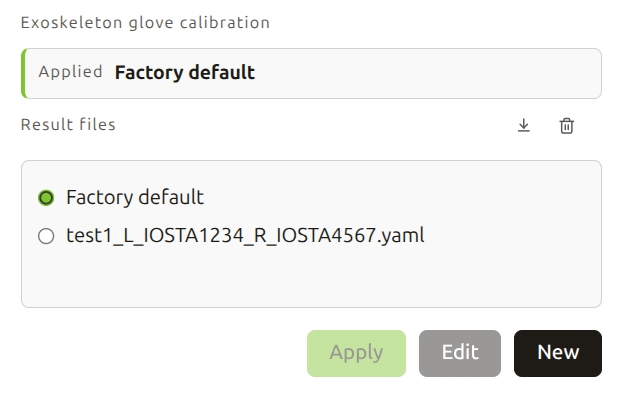
- After selecting a configuration file, click Apply to apply it to the currently connected exoskeleton glove.
- After selecting a configuration file, click Modify to open the calibration wizard and re-calibrate the results in that file by following the on-screen guidance.
- Click New to open the calibration wizard and create a new configuration file.
- Click the Delete icon to delete a configuration file.
- Click the Import icon to import a local configuration file.
The configuration file name format is fixed as <username>_L_<left exoskeleton glove SN>_R_<right exoskeleton glove SN>.yml.
In Headless mode, open another terminal and run ./scripts/run_calib_guide.sh to enter the terminal calibration guide.
Dexterous Hand Connection and Configuration
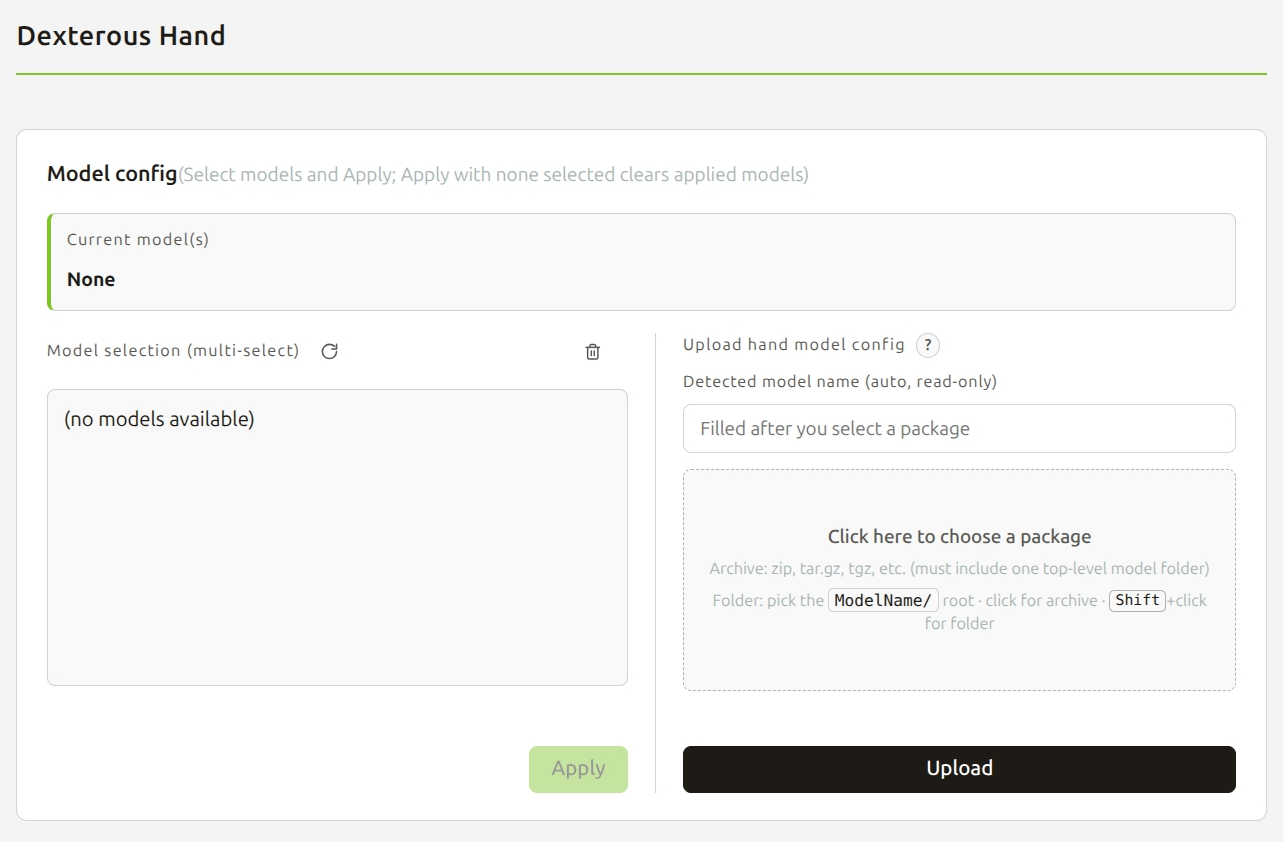
- Connect the dexterous hand to the PC and perform any necessary deployment adaptation.
- Upload the dexterous hand model configuration file:
-
The top level must be a single folder, whose name is the model name (only English letters, digits, and underscores allowed):
<model_name>/urdf/ # directory must contain filesmeshes/ # directory must contain filestf_transform_v2.ymlcontroller_v2_3_left.ymlcontroller_v2_3_right.ymlSupported archives:
zip,tar,tar.gz,tgz,tar.bz2,tar.xz, etc. (the archive must also contain one layer of the model-name directory). -
Click the upload area to select an archive, or Shift + click to select the model root folder (drag-and-drop upload is not supported).
-
Confirm that "Detected model name" is auto-filled correctly.
-
Click Upload Configuration.
-
If the model already exists, confirm whether to overwrite as prompted.
-
- In "Model Selection", check one or more available models: click "Refresh model list" if the desired model is not found.
- Click Apply.
Notes:
- "Current model" shows the applied list:
- "Saved, waiting for exoskeleton": the model is recorded and will automatically bring up the link once the exoskeleton is connected.
- "Process not ready": the exoskeleton or transform/controller is not yet ready; check the system monitor and logs.
- Clear model: uncheck all then click Apply; after confirmation, stops transform / controller (exoskeleton capture can continue running).
- Refresh: re-pull the model list.
- Delete model:
- Click the trash icon to enter delete mode.
- Delete models that are not applied.
- Applied models cannot be deleted; you must clear the application first before deleting.
- Left/right handedness is auto-detected by the exoskeleton; no manual side selection is needed in the UI.
- If
hand_chooseis configured and an exoskeleton is detected, the saved model is applied automatically at startup.
Exoskeleton and Dexterous Hand Visualization
Real-time Exoskeleton Motion Visualization
- Drag with the mouse to rotate; scroll to zoom.
Left/Right Exoskeleton Joint Data
- Shows the values of the left/right exoskeleton joint data over time.
- Toggle the legend to show/hide; hover then enlarge to full screen for viewing.
Data Output Frequency
- Shows the output frequency of the data source over time.
- About a 1-second sliding window.
- The axis can be set to fixed or dynamic.
Vibration Feedback
- A bar chart shows the vibration feedback intensity sent from the dexterous hand to the exoskeleton.
- Endpoints 1–10 map to the 10 exoskeleton fingertips.
Dexterous Hand Visualization
Real-time Hand Motion Visualization
- Drag with the mouse to rotate; scroll to zoom.
Left/Right Joint Data
- Shows the values of the left/right dexterous hand joint data over time.
- Toggle the legend to show/hide; hover then enlarge to full screen for viewing.
Left/Right Output Frequency
- Shows the output frequency of the data source over time.
- The axis can be set to fixed or dynamic.
System Monitor
Status
Refreshes GET /api/v1/status every second; you can watch:
- Applied / configured / available models
- Exoskeleton transport method:
serial/udp/none - Left/right bound port or
IP:port - Wireless online IP
- Whether each subprocess is
runningand its log path
A yellow banner appears when the gateway is offline; refresh resumes automatically after recovery.
WebSocket Data
- The page auto-connects to
/wsand auto-reconnects on disconnect. - Use the dropdown to switch and view the latest frame of each data stream.
- By default it subscribes to exoskeleton joints, left/right IMU, vibration feedback, and the applied model's left/right joint command streams.
- All available streams:
GET /api/v1/streams.
Quick Command Index
# Install desktop icon and serial permissions
./scripts/install-desktop.sh

# Launch web console
./scripts/run_gateway.sh

# Headless launch
./scripts/run_gateway.sh --headless

# Do not auto-open the browser
./scripts/run_gateway.sh --no-browser

# Wireless module firmware upgrade
cd tools/tools && python3 flash_wifi_module_usb_app.py
Console address: http://127.0.0.1:8080/
FAQ
| Symptom | Suggestion |
|---|---|
| Status area shows unable to connect to gateway | Confirm run_gateway.sh is started; check the port and logs/.../io_gateway.log |
| Wired keeps showing "Not connected" | Confirm you are in dialout and re-logged in; check USB; view logs/.../exo_tf.log |
| Provisioning failed / cannot get router MAC | Confirm PC is connected to target Wi-Fi; callback IP is gateway not host; ping the gateway first |
| Wireless cannot receive data / bind_ip mismatch | Confirm local IP, the PC IP at wireless provisioning time, and udp_probe.bind_ip are consistent |
| Model "Process not ready" | Ensure the exoskeleton is connected first; view the corresponding transform/controller logs |
| Delete model failed | Cancel the model application first, then delete |
| Upload failed | Check that the top-level directory name and urdf/, meshes/, and the three yml files are complete |
| Exoskeleton 3D blank | Place the STL into configs/exoskeleton_urdf/meshes/ |
| WebSocket no data | Confirm the exoskeleton is online and the model is applied; check process status in system monitor |
| Firmware upgrade cannot find device | Confirm USB connection, dialout permission; close gateway to avoid occupying serial port; use --port to specify node |
| Wireless cannot connect after upgrade | full mode clears provisioning; must re-run provisioning |
For technical support, please provide that day's relevant logs under logs/YYYY-MM-DD/ and the console output to help locate the issue quickly.